How To Flash ATM(XXX) Chip With ACTIONS Pad Product Tool Guide

How To Flash & Update ATM Chip With ACTIONS Pad Product Tool

  ACTIONS Pad Product Tool_V1.06.02.rar

How To Flash ATM Chip With ACTIONS Pad Product Tool

  • Open ACTIONS Pad Product Tool
  • Connect Your tablet To Boot Mode () Boot Mode - Press Volume and Connect tablet to PC
  • Choice Fw and Click Replace
  • Click to Download
  • Wait ... For Successful
  • That's It
Tested Report - ATM Chip}-TW_J0711_v40 Successfully Flashing Done With Original Fw
 ATM Chip}-TW_J0711_v40 Successfully Flashing Done With Original Fw

ACTIONS Pad Product Tool_V1.06.02.rar
F1120-WK-TWD-0308+0329像头带灯HDMI20140326.rar
Boot Mode - Press Volume and Connect tablet to PC
Password : fphone

How To Repair imei A20,a13,a10,Mtk cpus supported Tablet Device Guide

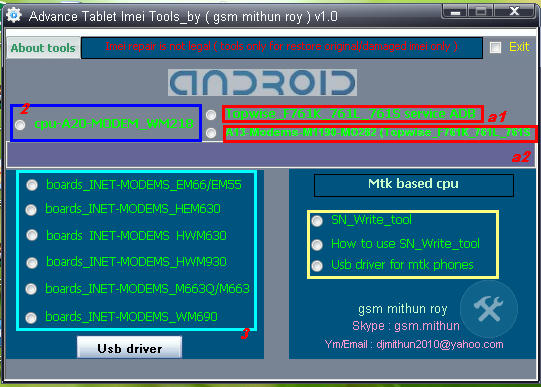
Advance Tablet imei repair tools V1.0
supported allwinner A20 cpu
supported allwinner a10 cpu
supported allwinner a13 cpu
supported Mtk 6572,65xx cpu
suppotred allwinner 2g modem imei writing
supported allwinner 3g modem imei writing
Different imei writing tools for different modem version


note : All tools need usb debugging on

For any tablet imei repair

How to use :
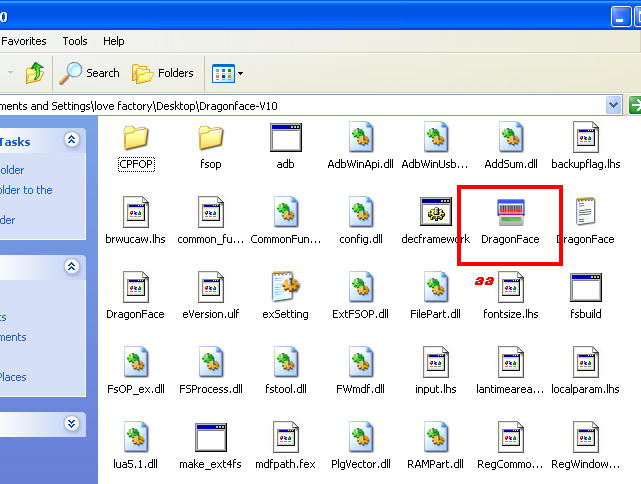
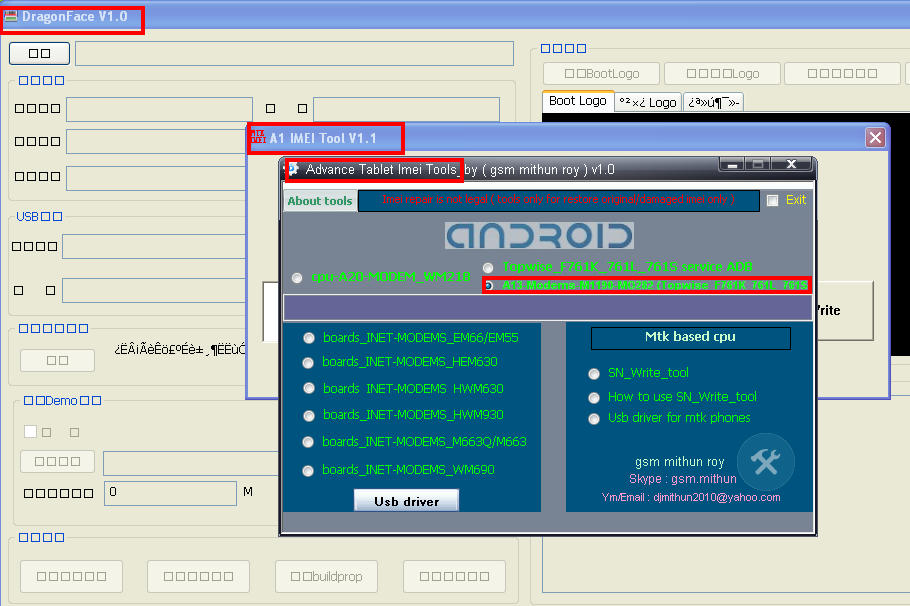
A1 & a2 : Click a1 topwise_F761k_761l_761s service Adb copy or extract Dragonface_v10 folder to desktop > open folder and deagonface.exe,now close advance tablet imei tools and open tool aagin now click a2 a13 modems1190-m0228 (topwise_F761k_761l_761s) then connect tablet and repair


2 : just click and fill the box imei digit press write

3 : click to any tools
according matches su al modem device enter 15 digit imei in cmd tool press enter then restart device and check
DOWNLOaD

HowTo Update Allwinner A23 CPU devices Using [PhoenixUsbPro] Flashing Guide

 HowTo Update Allwinner A23 CPU devices Using [PhoenixUsbPro] Flashing Guide
Things you may Need (The ones marked with a * are not optional):
- Stock firmware ROM*
- PhoenixSuit Key*
- PhoenixUSBPro* (Even if people keep calling it PhoenixSuit, thats its name when you install it)
- Semi-bricked Tablet* (Stuck on Logo, Cant enter recovery, etc.)
- Windows XP x86 or Windows 7 x86 / x62 *
- Patience**

This is a READ FIRST and READ-WHILE-ON-IT tutorial, Make sure to READ IT FIRST and then you can read it while youre doing it. If you attempt to do it while youre reading it without reading it first you'll be propense to make tedious mistakes.

Let's get on it.

Install PhoenixUSBPro and once its installed, open it.
Phoenix is just like livesuit but they have a bigger interface, youll see the task buttons on top:
Key file | Image | Debug View | Start | Help | Update | Exit | []reboot
below it shows your USB Hub status (internal and external)
and on the right side theres a box to hold your failed or succededly flashed devices.

DONT connect your tablet yet.

Press the key file button and navigate to where your Key file is and double click on it to select it.
Press the Image button and navigate to where your *.IMG Stock firmware rom file is and double click on it to select it.

Youll see a (X) red Icon on the right. Dont mind it yet.

DONT connect your tablet yet.

Press Start. The red Icon should have turned to GREEN. If it didnt, something went wrong, they key file or the *.IMG rom file are damaged, corrupted, downloaded wrong or they are invalid. Search for a working ROM or start again the tutorial.
(Most of the times it should do just fine).

after the Icon has turned green, we are ready to connect our device.
First connect your USB Cable to your computer and leave your tablet disconnected
Make sure your tablet is completely turned off.
Before connecting your tablet, press the Volume+ button (or search your device's FEL Button on google / Linux-sunxi) for the Q88Pro, and Q8H is Volume+, probably for others the same.
Ok, Hold the Volume+ button pressed down and connect your USB Cable to your Tablet (While holding the Volume+ button down).
Right after connecting your USB Cable into your tablet (without releasing the Volume+ Button) Start pressing your POWER button repeatedly, One time every second.
At the sixth time (for some devices you need to press it 10 times or more) it will pop in your USB Hub interface box a device. Wait a few and it will appear your connected tablet.
It will say: Your device's queued ID and the process percent.
Mostly starts fast til 7% and then it continues to 53% then it does the job.
It'll take about 2"5 mins so be patient I know you want your tablet restored.

After its done it will appear on the right box if it succeeded or failed and the time the flashing took.
now you can press Stop and disconnect your tablet.

In the FEL Mode, even if your tablets screen is deep black, it might be still turned on.
So firstly try to turn it on normally holding your power button for about 3 to 5 seconds, if nothing seems to happen you need to force-shutdown first, for it: hold your power button for about 10 to 15 seconds. After that your tablet should be powered down, proceed to turn your tablet on. VOILA!!, good work guys.!
phoenixusbpro flashing guide for new user
Here im adding something for new user with pic
1st Downlod Letest Flasher From here
NT: Letest Phonixcard also can flash a23 available on following link
Here we go Phoenixusbpro flashing guide :
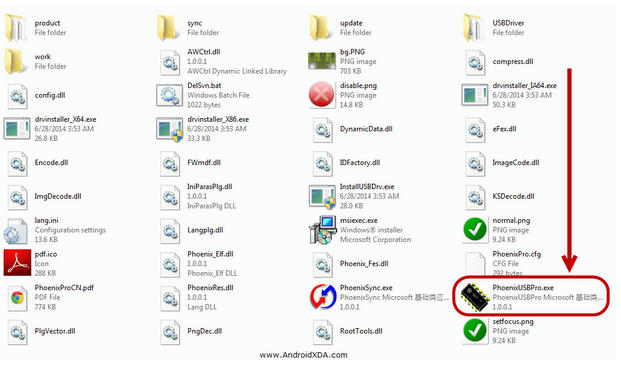
1. open phoenixusbpro folder and open PhoenixUSBPro.exe
[for win 7 user run as Adminishtrator ]
2.Click no key bottom from top
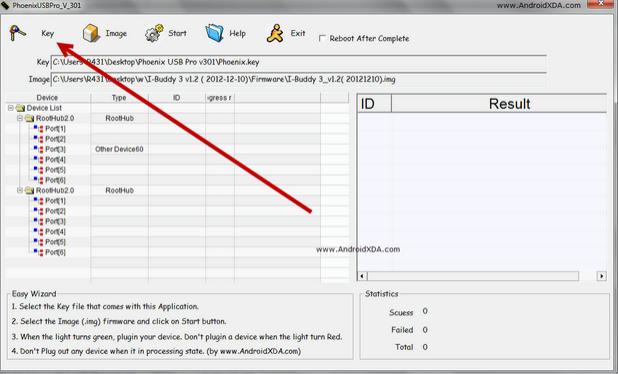
3. select key file from phoenixusbpro key folder [ only for 1st time farther when you use it will auto detect key file ]
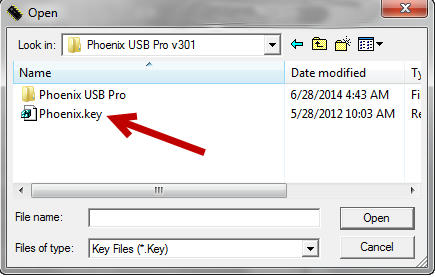
4.now click to image button and select downloded firmware
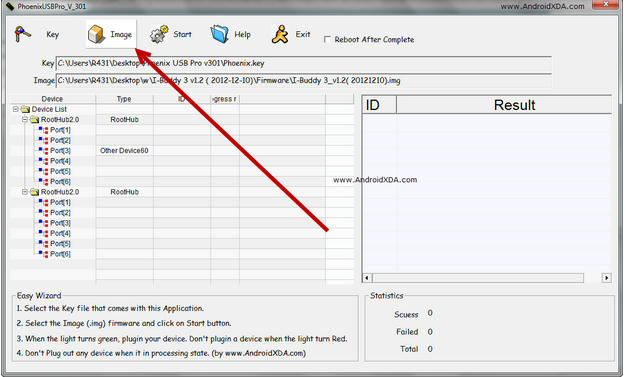
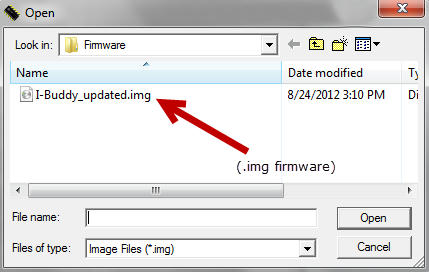
5.now after select image click to start button
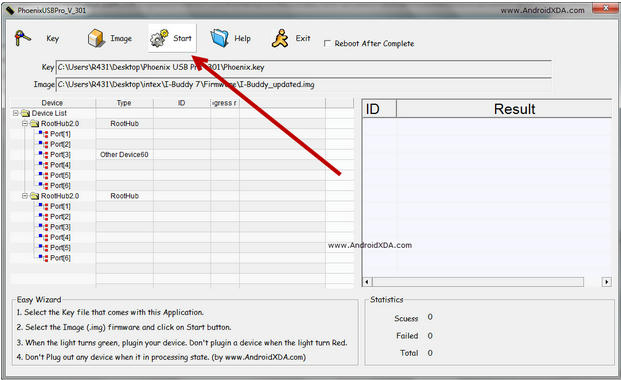
6.after select start you will see a green trick mark at and of left side
this mean all ok you are ready to flash your tablet
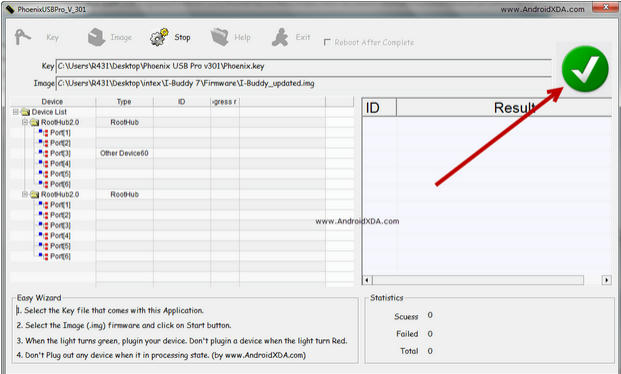
8.final stage you have to force tablet in flash mode by key combintions [its same as livesuit flashing stage ]
HOLD on vol + or - key then connect usb to tablet and quickly keep pressing power button few times 10-15-20 you will see flashing process started software will detect your tab usb
and wait for finished massage
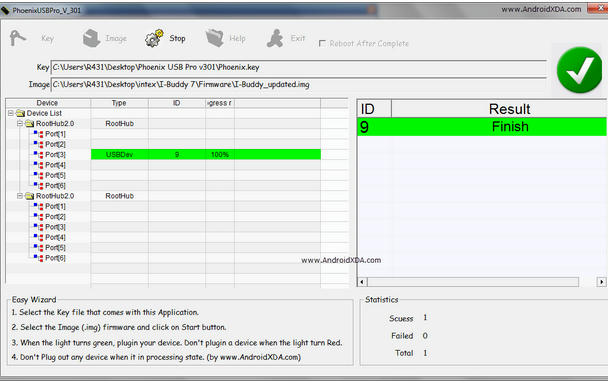

All done now disconnect and power on your tablet 
Download latest Android Lollipop 5.1.1 stock firmware for Cloudnetgo CR18 / CR13 Plus TV Boxes


Download latest Android Lollipop 5.1.1 stock firmware for Cloudnetgo CR18 / CR13 Plus TV Boxes from here or from here. 

  
Firmware details
Archive: CR18-cloudnetgo-1000M-ap6330-update-26082015
Image: CR18-cloudnetgo-1000M-ap6330-update-26082015.img
Model: Cloudnetgo CR18 / CR13 Plus TV Boxes
Image file size: 624 MB
Platform: Rockchip RK3368
FW version: 5.1.00
Boot version: 2.30
Build number: rk3368_box-userdebug 5.1.1 LMY47V eng.edwin.20150826.154016 test-keys

SDK version: RK30_ANDROID5.1.1-SDK-v1.00.00


Caution: Please do not update firmware unless you know what you are doing, you really want it or it is absolutely necessary. Firmware updates may occasionally have bad results, like bricking your device, temporarily or permanently. The firmware update process is done entirely at your own risk. Before attempting to update the firmware, back up your data.


Don’t miss any of our future video tutorials, follow us on Youtube. Like us on Facebook. Add us in your circles on Google+. Watch our photo albums on Flickr. Subscribe now to our newsletter.

Jackleo release a ultra-thin metal shell samrtphone - Justice JL560


First, Let‘s together to get to know JACKLEO JUSTICE JL560 appearance design, which has the characteristic of fashion, ultra-thin metal shell, tactility have qualitative feeling very much, and don't lack a kind of simple and fashionable feeling. This is also reflected the JACKLEO design concept and brand definition. The JACKLEO JUSTICE JL560 phone has three colors,white,black and gold. Each color reflect the taste of style is slightly different, white fashion, classic black, golden luxury.

JACKLEO JUSTICE JL560 have 5.5 inch large screen , a resolution of 960 x 540 pixels, the screen display effect is very good. Quality is exquisite, colour is gorgeous and visual Angle, etc. Now as smart phones most have the big screen, we can see all kinds of mainstream mobile phone screen in more than 4 inches, 5 inches or more screen is the most popular. At the same time it give us on the video game entertainment provides better effects. At the same time JACKLEO JUSTICE JL560 is Android 4.4.2 system, fuselage with 8 GB of memory for 1 GB expanded memory, to be able to meet the different needs of customers.

JACKLEO JUSTICE JL560 chip USES is MT6582 quad core 1.3 Ghz processor. In the aspect of operation and software compatible can meet the needs of our normal. But for the pursuit of high configuration, but the mobile phone market pricing is very reasonable, cost-effective. Support for multiple languages at the same time, makes up the defect of the language barrier.
 
Looking from the config specs, enhance the main focus on details and functionality. JACKLEO JUSICE JL560 front-facing camera is 200 w pixels, the rear camera for 800 w pixels. At the same time combined with dual LED flash. The lens appears more fully bright, give you a different experience.
 
JACKLEO JUSTICE JL560 mobile phone speaker setup at the back to the bottom of the shell after covering more than 200 holes, it has a stereo sound effect, give you different sense of seeing and hearing.
 
JACKLEO JUSTICE JL560 has ultra-thin fuselage, give a person a kind of different experience, its length, width and height of 155 mm / 78.5 mm / 7.5 mm. Texture of the metal frame, a very fashionable breath, meet the needs of different customers.


Don’t miss any of our future video tutorials, follow us on Youtube. Like us on Facebook. Add us in your circles on Google+. Watch our photo albums on Flickr. Subscribe now to our newsletter.

Doogee F5: A device that goes against the trend


Since the birth of iphone 6/6 plus, curved edge design has been a fashion and followed by almost every manufacturer. However, DOOGEE F5 gonna say NO. 

Curved body is not the only choice for smartphones. Designs should be diversified. Smartphones should have distinct personality, so do we. Why not be just you?

DOOGEE F5 is an example of being genuinely yourself, ‘cause everyone else is already taken. 


Don’t miss any of our future video tutorials, follow us on Youtube. Like us on Facebook. Add us in your circles on Google+. Watch our photo albums on Flickr. Subscribe now to our newsletter.

EZCast for Windows reaches 1.6.0.9 version. Download it now from here!


Download EZCast for Windows v1.6.0.9 from here, here or from here. Download previous version 1.6.0.4 from here.


* Release Version 1.6.0.4, date:2015-08-28
Release Note: 

1. Fix Windows 10 Audio driver issue.


EZCast application for Windows version, developed by WinnerWave, displays your Windows embedded PC and Notebook wirelessly via EZCast devices or platforms.
Requirements: Windows 7, Windows 8/8.1.
Supports Extension and Mirror with audio transmission.
Supports music and video streaming.
Do not support Windows starter version.


Everything you want to know about EZCast previous versions you'll find here


Don’t miss any of our future video tutorials, follow us on Youtube. Like us on Facebook. Add us in your circles on Google+. Watch our photo albums on Flickr. Subscribe now to our newsletter.